

Cleaning May Be Required
Computing is sometimes a very mysterious world: overnight, you may find that your laptop takes longer than usual to start up, opens files more slowly, or slows down especially when you play games or watch videos. This type of situation is not uncommon, and in the vast majority of cases, you can easily resolve the problem.
Speed Up Your Computer: 5 Tips
Several factors can explain a laptop’s slowness. Very often, the problem originates in the software: this is good news since it means that you will not have to open the back cover of your laptop! However, this guide still offers a simple hardware solution if the rest is not enough. Here's how to fix a slow laptop.
1. Free Up Space on Your Hard Drive
Whether your laptop has a hard drive (HDD) or an SSD, it may become so full that it slows down. Avoid filling a hard disk to 100%, especially when it houses the machine’s operating system. Ideally, keep at least 20% of disk space available.
To do this, you can use the Windows "Disk Cleanup" tool. Search for "Disk Cleanup" in Windows to access it immediately. You can use it to empty the Recycle Bin and delete temporary files or files you no longer use. This can often eliminate several gigabytes of unnecessary data very quickly, and it can help speed up your machine. Be careful, though: only delete system files that the Windows tool suggests. You can also delete personal data like photos and videos if you no longer need them, or store them on a removable disk instead.
2. Delete Programs You No Longer Use
Continuing on from the previous point, it can be very useful to carefully check the software, applications and programs on your laptop to determine whether you still use them. To do this, you can go to Settings > Apps > Installed Apps. All the programs on the PC appear there. Scroll through the list, and when you come across software you no longer use, uninstall it. This will save space and possibly prevent your computer from running unnecessary software in the background. This brings us to our next point.
3. Limit the Programs That Launch at Startup
When a computer starts up, it has a habit of automatically launching many programs. While some are very useful, such as those related to laptop drivers or essential Windows functions, others may slow down your machine unnecessarily. You can prevent these programs from launching at computer startup.
Type "Task Manager" in Windows search, and open the associated window. Then select the startup apps section. Each program has a startup impact level: when it is "high," this means that the application may significantly slow down startup. If you do not use that program frequently, you can disable its launch at startup. As a general rule, when you cannot figure out which program it is, it is best not to touch anything.
4. Look for Viruses
Computer viruses, in the broad sense, can contribute to slowing down your computer very considerably. Often, they use the computing power of your laptop to mine cryptocurrencies, attack remote servers or spy on your activities. This can slow down or even block your machine, and it also reduces your online security.
Installing an antivirus, even a free one, can help you see things more clearly. You can turn to Avira or Avast, or use Malwarebytes or AdwCleaner to scan your hard drive for malware. Some very stubborn viruses sometimes require specific software and several restarts before you can remove them. In the end, you should see the difference.
5. Dust Your Computer
Our last tip requires a little work and a few accessories, since it involves dusting off your laptop. An accumulation of dust in a computer’s fans prevents hot air from escaping effectively. To protect itself, the machine reduces its processing speed, which often results in slowdowns.
Laptops often experience this problem, as the dust buildup is less noticeable. You can clean your laptop in two ways after shutting it down and unplugging it. The simplest is to use a can of compressed air to clear dust from the ventilation openings. Follow the manufacturer’s cleaning instructions, and avoid using a household vacuum cleaner, which can generate static electricity.
The second solution is to use a small screwdriver to open the back cover of your laptop and gain direct access to the fans and components, if the manufacturer’s instructions allow it. Here too, you can use compressed air, but direct access allows more precise cleaning. Then put the back cover on and turn the computer back on to see if your cleaning session has paid off!
What to Do When Nothing Solves the Problem?
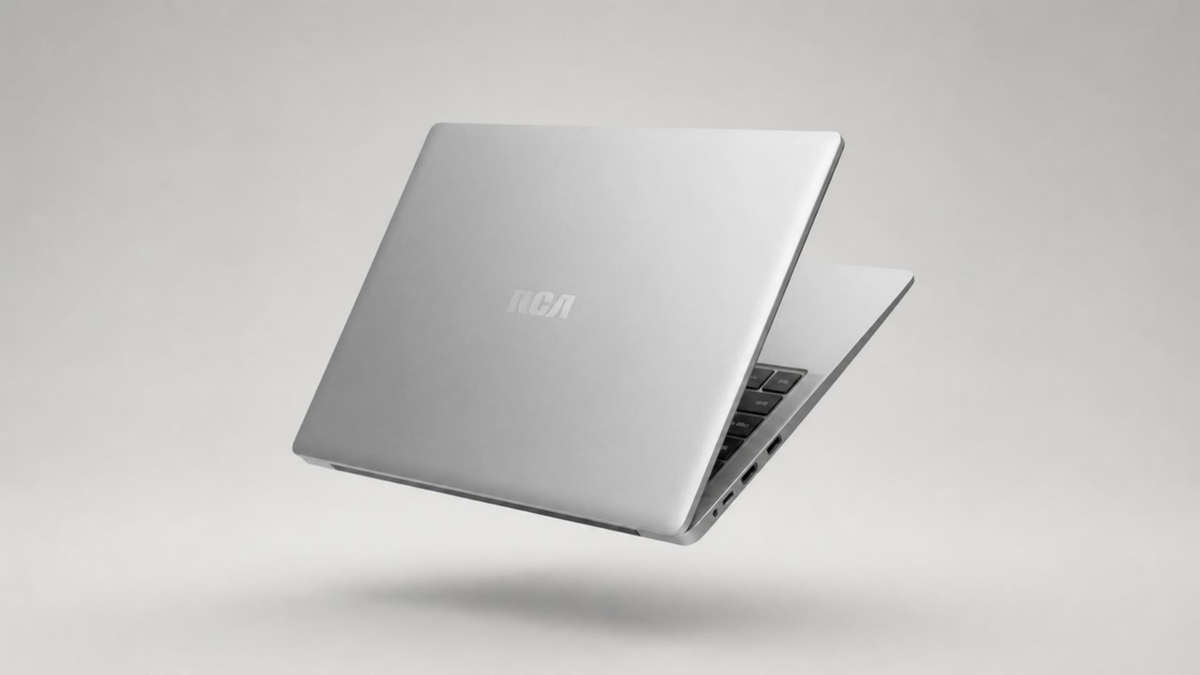
If, despite your best efforts, your laptop is still slow, the root of the problem may be its age. Throughout its life cycle, a laptop receives numerous system updates, including essential security updates, which can gradually slow down the machine. Even if you regularly clean up the hard drive and remove dust, there may come a time when the laptop can no longer keep up.
Therefore, if you have been using your laptop for many years and nothing seems to be enough to restore it to its former speed, it may simply be time to replace it. It is up to you to decide!






Share: